Mission
Project Name: Custom Segmentation System
Writing Custom segNet Program
Similar to how we created a new python file in our team assignment, generate a new python file and name it 02_5-2. segmentation_camera.py.
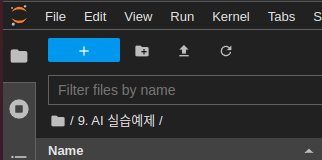
Create a new python file in the Jupyter Notebook Environment:
Press the blue plus button on the top left corner of the web.
Create a new python file by pressing the
Python Filebutton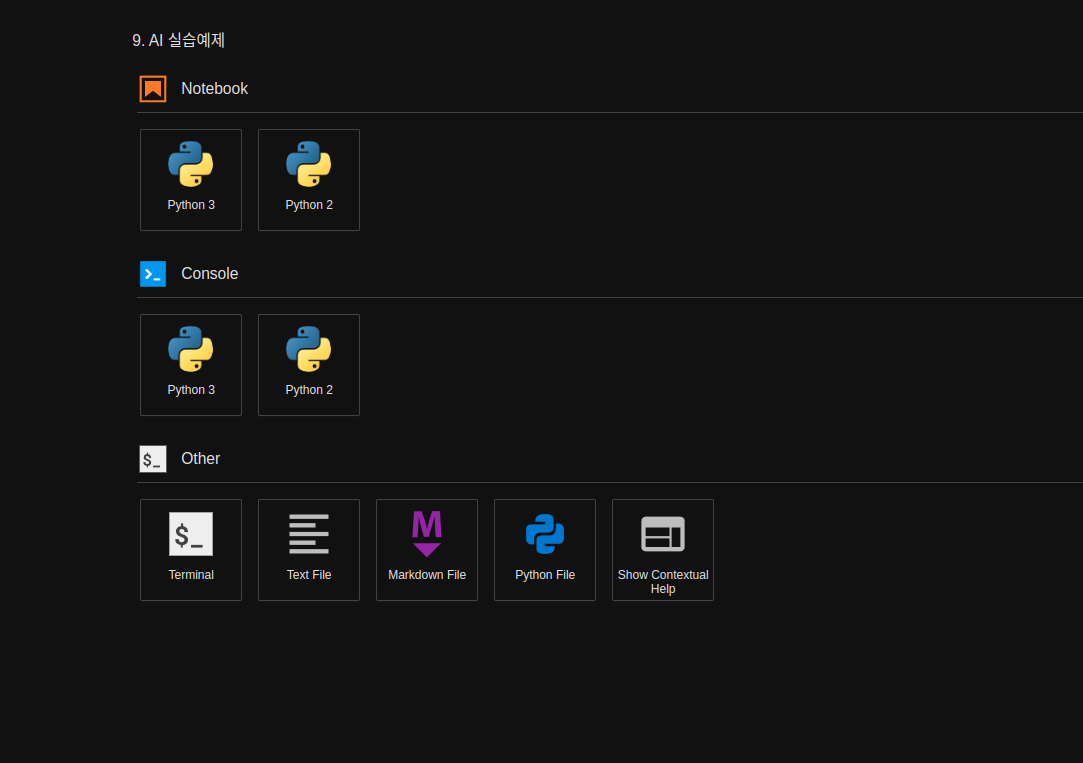
Rename the untitiled python file to
02_5-2. segmentation_camera.pyOn the new python file, import the libraries necessary. For our segmentation task, we need to import the Jetson inference library modules and jetson utility library modules
argparse: This library contains modules that are responsbile for bringing and intitializing the flags or parameters set by the user when envoking the program.sys: this library allows us to manipulate/ utilize system functions within our python programs.jetson_inference: This library contains all the pre-built networks that can be used for inference task and a functions that would allow for custom models to be used for inference tasks.setNet: We are importing segNet module for our segmentation task.
jetson_utils: This library contains modules that are responsible for processing input and output sources along with output stream methods. We will be importing the following modules:videoSource: used to process input source (whether it is a camera, an image, or a video).videoOutput: used to process the output stream.cudaOverlay: this module allows for overlay on the output stream.cudaDeviceSynchronize: This module allows for cuda devices and processes to synchronize.
segnet_utils: This library allows for buffer segmentation methods.
import argparse
import sys

from jetson_inference import segNet
from jetson_utils import videoSource, videoOutput, cudaOverlay, cudaDeviceSynchronize

from segnet_utils import *
After all the libraries are imported, initialize the parser variable with
argparse.ArgumentParsermodule.For our mission, we must receive the network name, and Camera output channel name. Additionally we add our minor functinoality flags.
# parse the command line
# For our mission, We recieve the network name, and Camera name.
# Set up argument parser, so that command line parameters can be read within the program
parser = argparse.ArgumentParser(description="Segment a live camera stream using an semantic segmentation DNN.",
                                formatter_class=argparse.RawTextHelpFormatter,
                                epilog=segNet.Usage() + videoSource.Usage() + videoOutput.Usage())

# Major Functionality parameters (required from the user)
parser.add_argument("input_CAMERA", type=str, default="", nargs='?', help="use csi://0 for Raspberry pi Camera")
parser.add_argument("--network", type=str, default="", help="pre-trained model to load")

# Minor Functionality parameters (optional)
parser.add_argument("--filter-mode", type=str, default="linear", choices=["point", "linear"], help="filtering mode used during visualization, options are:\n  'point' or 'linear' (default: 'linear')")
parser.add_argument("--visualize", type=str, default="overlay,mask", help="Visualization options (can be 'overlay' 'mask' 'overlay,mask'")
parser.add_argument("--ignore-class", type=str, default="void", help="optional name of class to ignore in the visualization results (default: 'void')")
parser.add_argument("--alpha", type=float, default=150.0, help="alpha blending value to use during overlay, between 0.0 and 255.0 (default: 150.0)")
parser.add_argument("--stats", action="store_true", help="compute statistics about segmentation mask class output")
Initialize opt variable to hold all the user-set flags in a list form. If the user has set no flags, terminate the program:
# If no parameter is given from the user, shut the program down
try:
    opt = parser.parse_known_args()[0]
except:
    print("")
    parser.print_help()
    sys.exit(0)
Initialize the necessary variables. Since we wish to infer a network with a camera and show the results with our output stream we will need:
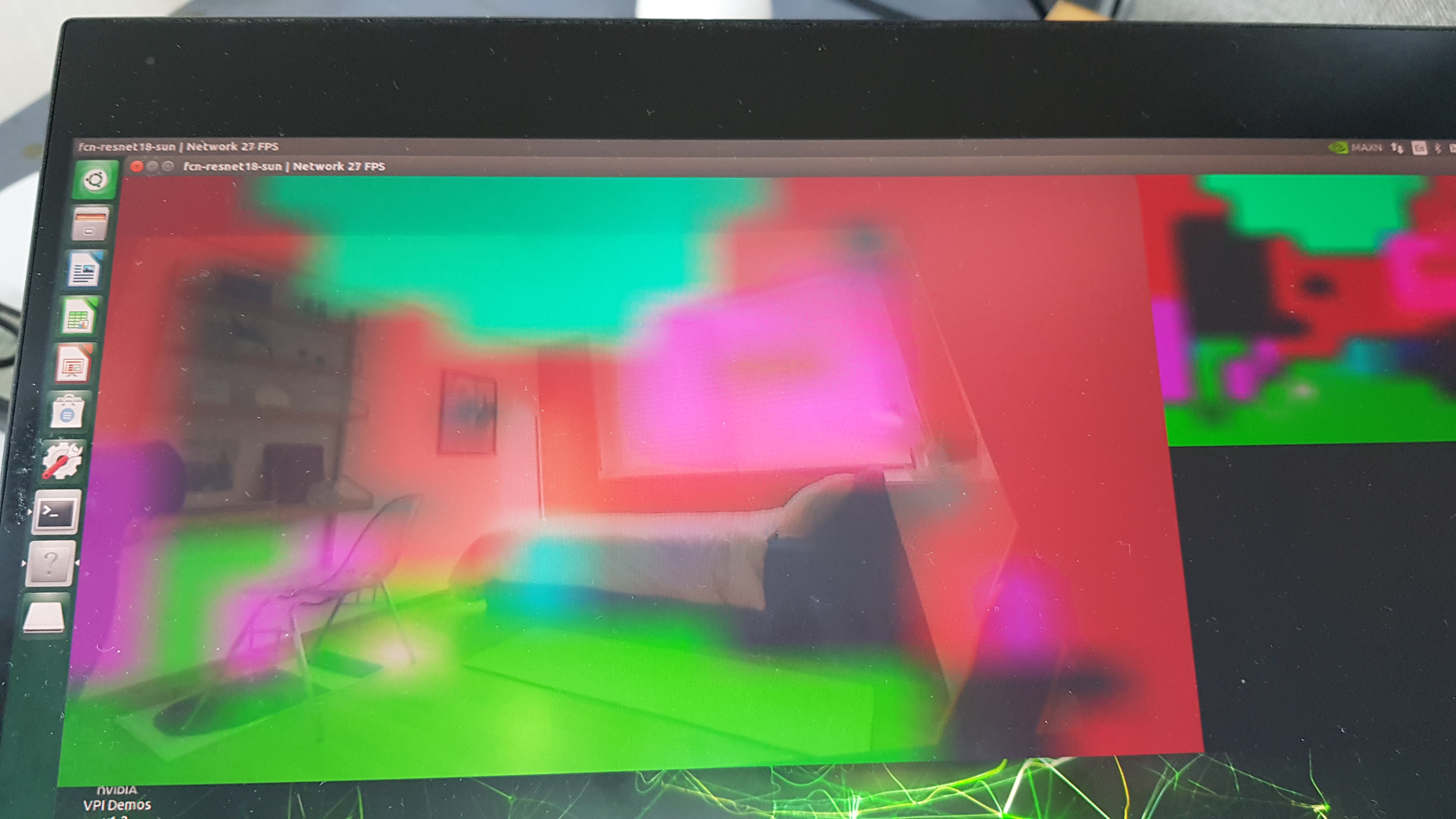
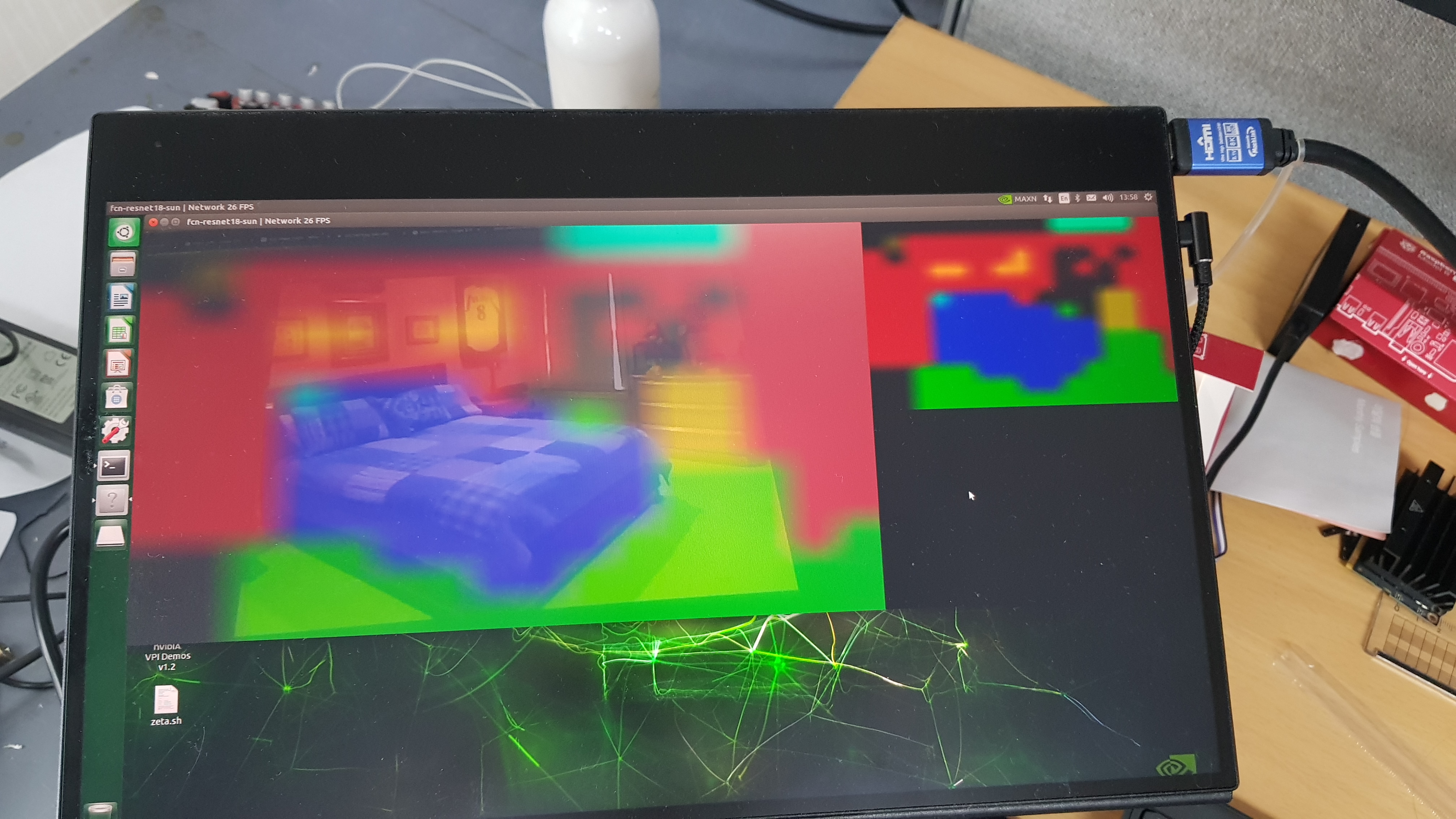
netvariable for holding the nvidia pre-built networks. For this mission we are using FCN-Resnet18-VOC (you may change this to FCN-ResNet18-Sun for indoor segmentation) network.inputvariable for handling the input stream. Using theoptvariable created in our previous step, we will bring in input_CAMERA to set our videoSource.displayvariable for handling the output stream. Although we are accessing the code remotely on our remote computer, the zetabot is equipped with a touch screen display. The display is set onDISPLAY://0buffervariable for managing buffer.
# load the segmentation network
net = segNet(opt.network, sys.argv)

# set the alpha blending value
net.SetOverlayAlpha(opt.alpha)

# create video sources & outputs
input = videoSource(opt.input_CAMERA, argv=sys.argv)
output = videoOutput("DISPLAY://0", argv=sys.argv)
# create buffer manager
buffers = segmentationBuffers(net, opt)
For this task we are utilizing our camera. On our previous trials, we had to to an inference on a single image. The program could recieve the one image infer it with the network and output a single result.
But with a camera, we need to repeatedly run the inference so that we may capture the incoming frames from the camera and output a constant stream of results.
We may achieve this by running a while loop until an envoked output stream window is killed by the user.
# process frames until the user exits
while display.IsStreaming():
Within the while loop:
Capture the current frame from the camera, allocate buffer for the size of the camera and infer the image using the trained model.
# Capture each of the frames of camera
img = camera.Capture()

# allocate buffers for this size image
buffers.Alloc(img.shape, img.format)

# process the segmentation network
net.Process(img, ignore_class=opt.ignore_class)
Overlay the resulting heatmap and mask with with the buffer.
# generate the overlay
if buffers.overlay:
    net.Overlay(buffers.overlay, filter_mode=opt.filter_mode)

# generate the mask
if buffers.mask:
    net.Mask(buffers.mask, filter_mode=opt.filter_mode)

# composite the images
if buffers.composite:
    cudaOverlay(buffers.overlay, buffers.composite, 0, 0)
    cudaOverlay(buffers.mask, buffers.composite, buffers.overlay.width, 0)
Render the result output and update the title bar of the output window.
# render the output image
output.Render(buffers.output)

# update the title bar
output.SetStatus("{:s} | Network {:.0f} FPS".format(opt.network, net.GetNetworkFPS()))
Executing the Custom Program
Open the
02_5-3. segmentation_camera.ipynbnotebook.
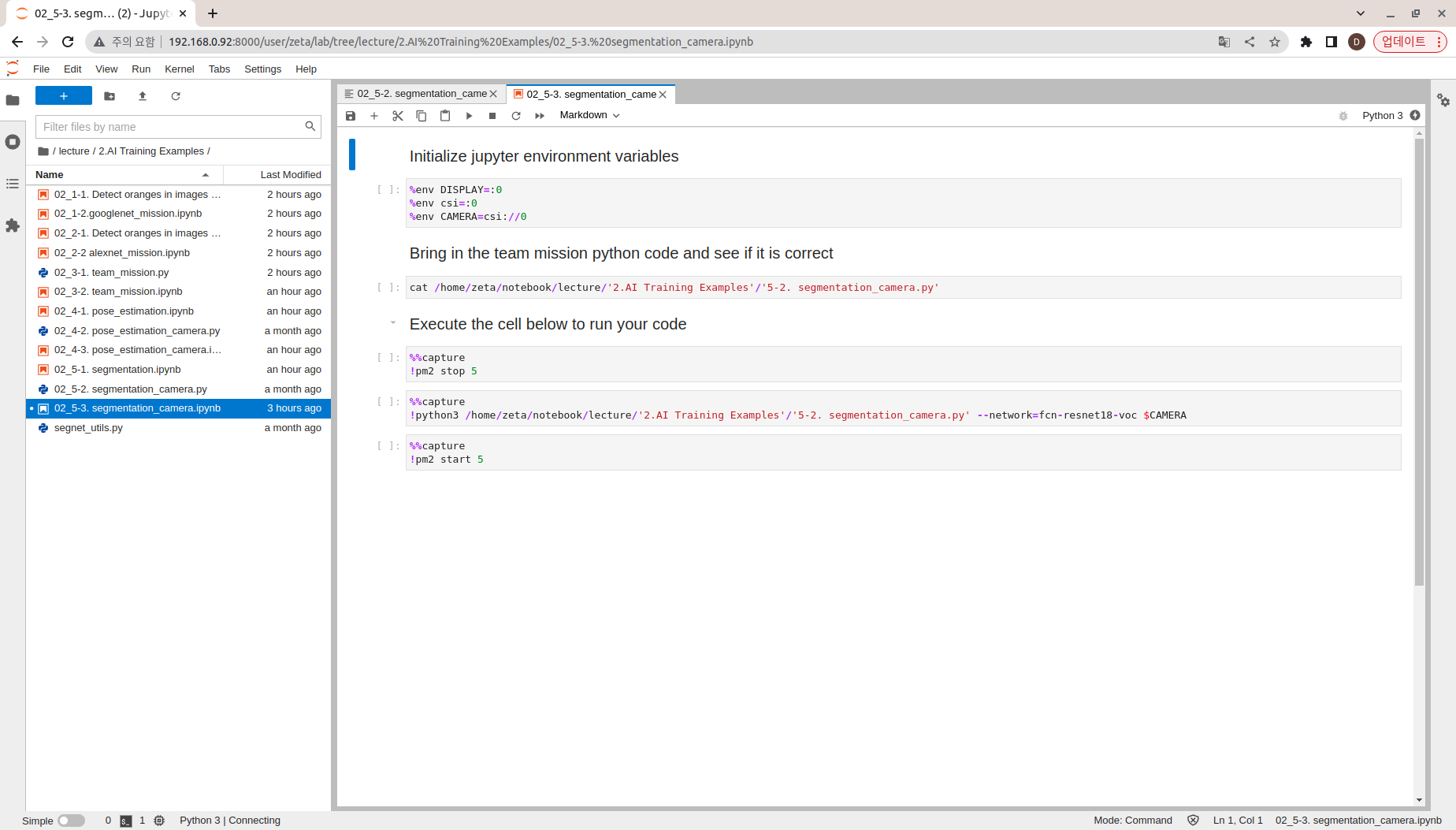
Run the cell code which initializes the input/ output stream of the environment as well as the CAMERA variable, which will be the flag that determines the input vairable for the program to be a camera stream.
%env DISPLAY=:0
%env csi=:0
%env CAMERA=csi://0
Check if your python notebook can read the python code you have written:
!cat /home/zeta/notebook/lecture/'2.AI Training Examples'/'5-2. segmentation_camera.py'
One important thing about the zetabot is that the Raspberry Pi camera is constantly running.
In order to use the camera for our task we must disable it first by running the following command:
%%capture
!pm2 stop 5
This will allow the camera to be used for our program.
Execute the segmentation_camera python code.
Note that we are setting our major functions,
--network: to set which networks to use in our segmentation task.You may change the pre-trained networks to the previously discussed networks.
input_CAMERA: to set which input stream will be used for our task. It is being set to CAMERA environment variable which holdscsi://0as a string.
%%capture
!python3 /home/zeta/notebook/lecture/'2.AI Training Examples'/'5-2. segmentation_camera.py' --network=fcn-resnet18-voc $CAMERA
Be sure to turn the camera back online by: